Showing posts with label .net Core. Show all posts

Sunday, December 29, 2019

2019 - The Year of .Net (Core) and Javascript. My New Directions for 2020

My real developer journey began in March 2019, when I decided to go full time developing my business applications. Before, I was doing this in parallel with my management accountant job, which was very exhausting at times.
The transition had lots of lessons, and it's described in my posts here on this blog and also on dev.to, https://dev.to/zoltanhalasz
But as a conclusion for 2019, some big trends can be seen in my work and learning, and these are the two main directions:
The Microsoft .Net Framework
Being the first choice for accounting applications, as the users all operate in Windows environments, I think this was a good decision. In fact, my then partner suggested the C#/WPF/MVVM track with MS SQL database.
Later during fall of 2019, I extended this with Asp.Net Core, as you can see in my posts, and that's the direction I want to follow in 2020.
Why I chose the asp.net core world? Reasons:
Some new directions for 2020 to experiment:
  • the Blazor framework, especially server-side, than later client-side.
The Web Programming Track with JS
As I mentioned in my blog posts, the web with Javascript was a real discovery for me in 2019. I really like the flexibility of JS and its huge impact on the front-end (plain JS, JQuery or SPA), which I try to implement in my projects, to make user experience better, and simulate a real business tool environment with grids, menus, pivot tables, charts and excel exports/imports.
Ways to improve my JS skills and integrate them to my tools
  • find new JQuery plugins for a great business tool feel;
  • maybe go deeper with SPA such as Angular (my journey began with this framework);
  • researching tools/frameworks/libraries for reporting/charting/grids;
Not to forget, the topic of database persistence, it will probably remain the MS SQL world, using Dapper ORM and EF Core, maybe with some experimenting with My SQL/ Mongo DB.
Another idea worth mentioning for 2020, will be a try of serverless functions from Azure.
And lastly to mention, if and when I have time, will be the Angular/Material design/Firebase world, which I really liked during my experimenting in the first half of 2019.
What do you think, would you add something different for my business app stack?

Wednesday, December 18, 2019

Open Source Reporting Solution (FastReport) - Simple Demo with .NET Core


I have been looking for a solution for reporting, which is free/open source, and only the last week I found something worth mentioning. I am still open to new possibilities for Open Source reporting (usable in .Net core), but that's all I have found until now. Being from the corporate accounting world, my tools are directed towards accountants and business users, which heavily rely on such reports, and I would like to see an open source/free reporting tool to serve this purpose.

I know, there are other solutions such as Telerik and Syncfusion, but they seem to be expensive for my level.


In fact, all I need is a reporting tool for my web applications - generate report according to template, and then export in pdf/excel.

The solution I am dealing here with comes from FastReport, which just has published its OpenSource version:
https://fastreports.github.io/FastReport.Documentation/
https://github.com/FastReports/FastReport

I have prepared a small tutorial which takes a list of employees and publishes a report for them.

Prerequisites:
A. Basic .Net Core MVC
B. Nuget Package - FastReport.OpenSource.Web (take latest one for 2019)
C. There is an frx file, which is an XML document describing the report itself. I manually edited the sample report, to fit my sample data. It is saved in my wwwroot folder, simple list.frx.
D. Main difference to their tutorial is that I take data from my list, not the XML database of Northwind.  Clone their git repo, and see how it runs for their
data: the Web.MVC folder contains the relevant .net core MVC example: https://github.com/FastReports/FastReport/tree/master/Demos/OpenSource
E.  There is a report editor/designer, Fast Report Designer Demo for trial purposes.  Download it.
Also, download the https://www.fast-report.com/en/product/fast-report-viewer/, it's a free tool.

Application is live under: https://fastreport.zoltanhalasz.net/

Steps to understand the tutorial:
1. Clone my github repo https://github.com/zoltanhalasz/FastReport.Tutorial
2. Check the logic in the controller and also the service I use to populate the report (it differs from their example - I take a list as an input, not an XML file as opposed to their example).
The template of the report is an xml file, with frx extension, saved in wwwroot folder.
I edited manually one of their simple examples to fit my requirements for the tutorial.
3. Check the View  (from Views/Home/Index), how it takes the report and publishes it via Razor.
4. Run the application, result should be as below:


5. Save the report, in .fpx format. Then with the downloaded viewer (at point E above), you can open the populated report and then save in excel, pdf, word etc. The result should be:


I hope I can study this further and apply in one of my future projects!

Let me know your thoughts about this topic, how you would apply open source reporting to .net core.


Wednesday, December 11, 2019

DataTable.js Tutorial for .Net Core Razor Pages Application - Part 2 - Full CRUD


This is the continuation of the Part 1 tutorial. The main goal here is to apply rendered elements in the datatable, which can contain various HTML tags, such as links/operations with other pages.

Technologies used:
1. Javascript, Datatables.js
2. Razor Pages, .Net Core
3. In-Memory Database in .Net Core

Prerequisites:
1. Asp.Net Core 2.2  Razor Pages, see suggested learning: https://mydev-journey.blogspot.com/2019/11/razor-pages-not-for-shaving.html
2. In-memory Database, presented in tutorial: https://exceptionnotfound.net/ef-core-inmemory-asp-net-core-store-database/
3. I was inspired by this tutorial: https://www.c-sharpcorner.com/article/using-datatables-grid-with-asp-net-mvc/
4. See Part 1, which is the more simple approach for DataTables:  https://mydev-journey.blogspot.com/
5. Link for Part 2 Repository, zipped: https://drive.google.com/open?id=1PT9Tk77m2gfZVrFmLwefSt_lqXuYyvEr
6. setup the wwwroot folder, in a similar way as for the Part 1 tutorial
7. you can view the application live online: http://datatables.azurewebsites.net/

Steps:
1. Create Razor Web Project
2. Create Base Class:
    public class InvoiceModel
    {
        [JsonProperty(PropertyName = "ID")]
        public int ID { get; set; }
        [JsonProperty(PropertyName = "InvoiceNumber")]
        public int InvoiceNumber { get; set; }
        [JsonProperty(PropertyName = "Amount")]
        public double Amount { get; set; }
        [JsonProperty(PropertyName = "CostCategory")]
        public string CostCategory { get; set; }
        [JsonProperty(PropertyName = "Period")]
        public string Period { get; set; }   
    }
3. Create and Populate in-memory database and table
Create Context:
    public class InvoiceContext : DbContext
    {
        public InvoiceContext(DbContextOptions<InvoiceContext> options)
            : base(options)
        {
        }

        public DbSet<InvoiceModel> InvoiceTable { get; set; }
    }
Create Invoice Generator Service
 public class InvoiceGenerator
    {
      public static void Initialize(IServiceProvider serviceProvider)
        {
            using (var context = new InvoiceContext(serviceProvider.GetRequiredService<DbContextOptions<InvoiceContext>>()))
            {
                // Look for any board games.
                if (context.InvoiceTable.Any())
                {
                    return;   // Data was already seeded
                }

                context.InvoiceTable.AddRange(
                new InvoiceModel() { ID=1, InvoiceNumber = 1, Amount = 10, CostCategory = "Utilities", Period = "2019_11" },
                new InvoiceModel() { ID=2, InvoiceNumber = 2, Amount = 50, CostCategory = "Telephone", Period = "2019_12" },
                new InvoiceModel() { ID = 3, InvoiceNumber = 3, Amount = 30, CostCategory = "Services", Period = "2019_11" },
                new InvoiceModel() { ID = 4, InvoiceNumber = 4, Amount = 40, CostCategory = "Consultancy", Period = "2019_11" },
                new InvoiceModel() { ID = 5, InvoiceNumber = 5, Amount = 60, CostCategory = "Raw materials", Period = "2019_10" },
                new InvoiceModel() { ID = 6, InvoiceNumber = 6, Amount = 10, CostCategory = "Raw materials", Period = "2019_11" },
                new InvoiceModel() { ID = 7, InvoiceNumber = 7, Amount = 30, CostCategory = "Raw materials", Period = "2019_11" },
                new InvoiceModel() { ID = 8, InvoiceNumber = 8, Amount = 30, CostCategory = "Services", Period = "2019_11" },
                new InvoiceModel() { ID = 9, InvoiceNumber = 8, Amount = 20, CostCategory = "Services", Period = "2019_11" },
                new InvoiceModel() { ID = 10, InvoiceNumber = 9, Amount = 2, CostCategory = "Services", Period = "2019_11" },
                new InvoiceModel() { ID = 11, InvoiceNumber = 10, Amount = 24, CostCategory = "Services", Period = "2019_11" },
                new InvoiceModel() { ID = 12, InvoiceNumber = 11, Amount = 10, CostCategory = "Telephone", Period = "2019_11" },
                new InvoiceModel() { ID = 13, InvoiceNumber = 12, Amount = 40, CostCategory = "Consultancy", Period = "2019_12" },
                new InvoiceModel() { ID = 14, InvoiceNumber = 13, Amount = 50, CostCategory = "Services", Period = "2019_11" },
                new InvoiceModel() { ID = 15, InvoiceNumber = 14, Amount = 40, CostCategory = "Utilities", Period = "2019_11" },
                new InvoiceModel() { ID = 16, InvoiceNumber = 15, Amount = 10, CostCategory = "Services", Period = "2019_11" });

                context.SaveChanges();
            }

        }


4. Register the database
within Startup cs, above add MVC command:
            services.AddDbContext<InvoiceContext>(options => options.UseInMemoryDatabase(databaseName: "InvoiceDB"));

within Program Cs, we need to make changes, see final version:
 public class Program
    {
        public static void Main(string[] args)
        {


            var host = CreateWebHostBuilder(args).Build();

            //2. Find the service layer within our scope.
            using (var scope = host.Services.CreateScope())
            {
                //3. Get the instance of BoardGamesDBContext in our services layer
                var services = scope.ServiceProvider;
                var context = services.GetRequiredService<InvoiceContext>();

                //4. Call the DataGenerator to create sample data
                InvoiceGenerator.Initialize(services);
            }
            //Continue to run the application
            host.Run();
            //CreateWebHostBuilder(args).Build().Run();
        }

        public static IWebHostBuilder CreateWebHostBuilder(string[] args) =>
            WebHost.CreateDefaultBuilder(args)
                .UseStartup<Startup>();
    }
5. Using EF, the tables are populated in all Pages, see example for Index:

PageModel:
  public class IndexModel : PageModel
    {
        private InvoiceContext _context;

        public List<InvoiceModel> InvoiceList;
        public IndexModel(InvoiceContext context)
        {
            _context = context;
        }
        public void OnGet()
        {
            InvoiceList = _context.InvoiceTable.ToList();
        }
    }
CSHTML file
will be a simple listing of the InvoiceTable using foreach (actually you can scaffold this view)
6. DataTableArrayRender page:
Will contain the datatable js code, together with the rendered html elements:

@page
@model DataTableArrayRenderModel
@{
    ViewData["Title"] = "Invoice List - With Datatable - from Javascript Array";
}

    <div class="text-center">
        <h1 class="display-4">Show DataTable - from Javascript Array -  Rendered Columns</h1>
        <p>
            <a asp-page="Index">Show original Table (Html from Razor)</a>
        </p>
        <p>
            <a asp-page="InvoiceAdd" class="btn btn-info">Add New Invoice</a>
        </p>
    </div>

<script type="text/javascript" language="javascript" src="~/lib/jquery/dist/jquery.min.js"></script>
<script src="~/js/jquery.dataTables.min.js"></script>

<script>
    /////////
    function convertToDataSet(responseJSON) {
        console.log(responseJSON);
        var returnList = [];
        var returnitem = [];
        for (var i = 0; i < responseJSON.length; i++) {
            console.log(responseJSON[i]);
            returnitem = [];
            returnitem.push(responseJSON[i].ID);
            returnitem.push(responseJSON[i].InvoiceNumber);
            returnitem.push(responseJSON[i].Amount);
            returnitem.push(responseJSON[i].CostCategory);
            returnitem.push(responseJSON[i].Period);
            returnList.push(returnitem);
        }
        return returnList;
    }

    function getTable() {
        return fetch('./DataTableArrayRender?handler=ArrayDataRender',
            {
                method: 'get',
                headers: {
                    'Content-Type': 'application/json;charset=UTF-8'
                }
            })
            .then(function (response) {
                if (response.ok) {
                    return response.text();
                } else {
                    throw Error('Response Not OK');
                }
            })
            .then(function (text) {
                try {
                    return JSON.parse(text);
                } catch (err) {
                    throw Error('Method Not Found');
                }
            })
            .then(function (responseJSON) {
                var dataSet = convertToDataSet(responseJSON);
                console.log(dataSet);
                $(document).ready(function () {
                    $('#example').DataTable({
                        data: dataSet,
                        "processing": true, // for show progress bar
                        "filter": true, // this is for disable filter (search box)
                        "orderMulti": false, // for disable multiple column at once
           
                        columns: [
                            { title: "ID" },
                            { title: "InvoiceNumber" },
                            { title: "Amount" },
                            { title: "CostCategory" },
                            { title: "Period" },
                            {
                                data: null, render: function (data, type, row) {                                 
                                    return '<a class="btn btn-danger" href="/InvoiceDelete?id=' + row[0] + '">Delete</a>';
                                }
                            },
                            {
                                "render": function (data, type, full, meta)
                                { return '<a class="btn btn-info" href="/InvoiceEdit?id=' + full[0] + '">Edit</a>'; }
                            },
                            {
                                "render": function (data, type, full, meta)
                                { return '<a class="btn btn-warning" href="/Index">Main Page</a>'; }
                            },
                        ]
                    });
                });
            })
    }

    getTable();
</script>

<table id="example" class="display" width="100%"></table>

7. Using the InvoiceModel, we can scaffold all pages like Delete, Create, Edit using EF model scaffolding of Razor Pages.
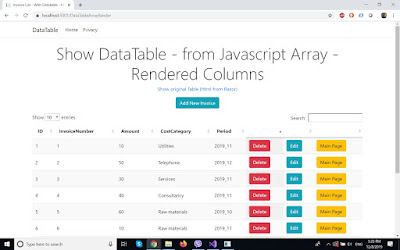
8. The end result will be a nice navigation table that besides the invoice data, will contain the rendered buttons/links.
End result:

DataTable.js Tutorial for .Net Core Razor Pages Application - Part 1


As I mentioned in my previous posts, my goal is to gather a number of  open source libraries, that can be implemented in my .NET Core project, alongside with Razor pages. My projects have to serve business purposes, so they need certain features that make them similar to Microsoft Excel.

Until now, I found a solution for:
a. Charting, with Chart.js, shown in tutorial: https://mydev-journey.blogspot.com/2019/12/chartjs-tutorial-with-aspnet-core-22.html
b. Pivot Table, with PivotTable.js, shown in tutorial: https://mydev-journey.blogspot.com/2019/12/pivottablejs-in-net-core-razor-pages.html
c. Fast Report, open source reporting tool, will be presented soon;
d. DataTables - present tutorial.
e. AgGrid or other grid systems - future plan.

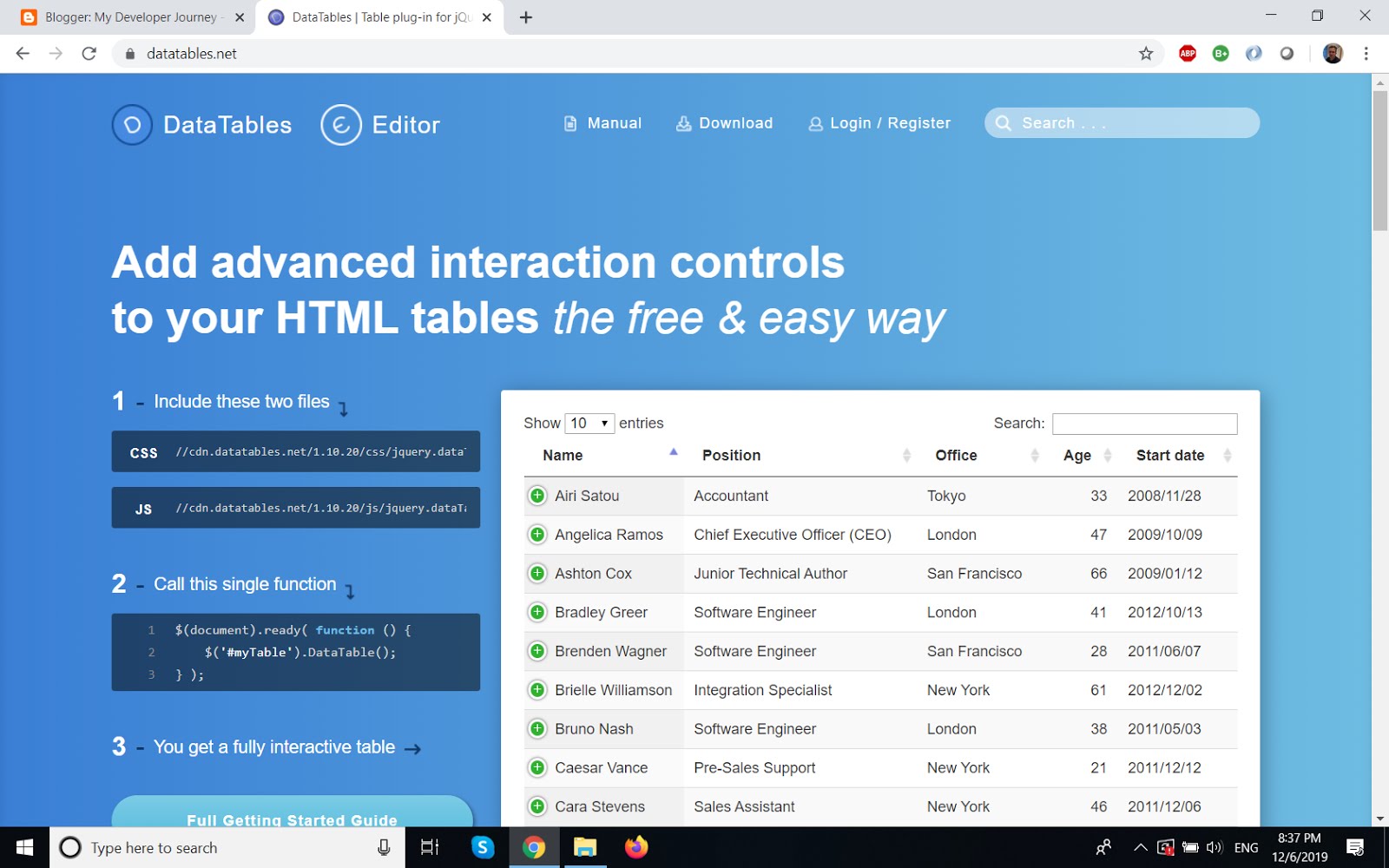
In the Javascript opensource world, https://datatables.net/ seems to be a respected solution for grids on the frontend. This is what I want to learn and implement in my project, and in the meantime, to share with you. I would like to study later a more advanced solution with datatables, with additional features, and perhaps that will be a continuation for this tutorial, another time.


Materials to study:
I. DataTables site, and two small examples that are the backbone of this tutorial:
a. https://datatables.net/examples/data_sources/dom.html
b. https://datatables.net/examples/data_sources/js_array.html
II. My Razor projects with Chart and PivotTable, see my tutorials at a) and b) above, see link:  https://mydev-journey.blogspot.com/2019/12/pivottablejs-in-net-core-razor-pages.html
III. Download my code from zipped repo: https://drive.google.com/open?id=1g1eJkqV1dphV0iAPQiqpLJSQtt_iYjeX
IV. Download the zipped DataTables files from: https://datatables.net/download/
Download the Css and JS file specific to Datatables, and place them into the CSS and JS folder of wwwroot.

jquery.dataTables.min.css => will go to the wwwroot/css folder
jquery.dataTables.min.js => will go to the wwwroot/js folder
then, copy the images files to wwwroot/images


Steps to follow for this introductory tutorial:
1. Create a .Net Core Web Project (Razor pages)
2. Create Base Class - InvoiceModel
    public class InvoiceModel
    {
        [JsonProperty(PropertyName = "InvoiceNumber")]
        public int InvoiceNumber { get; set; }

        [JsonProperty(PropertyName = "Amount")]
        public double Amount { get; set; }
        [JsonProperty(PropertyName = "CostCategory")]
        public string CostCategory { get; set; }
        [JsonProperty(PropertyName = "Period")]
        public string Period { get; set; }   

    }

3. Create Service to Populate List of  Invoices.

 public class InvoiceService
    {
        public List<InvoiceModel> GetInvoices()
        {
            return new List<InvoiceModel>()
            {
                new InvoiceModel() {InvoiceNumber = 1, Amount = 10, CostCategory = "Utilities", Period="2019_11"},
                new InvoiceModel() {InvoiceNumber = 2, Amount = 50, CostCategory = "Telephone", Period="2019_12"},
                new InvoiceModel() {InvoiceNumber = 3, Amount = 30, CostCategory = "Services", Period="2019_11"},
                new InvoiceModel() {InvoiceNumber = 4, Amount = 40, CostCategory = "Consultancy", Period="2019_11"},
                new InvoiceModel() {InvoiceNumber = 5, Amount = 60, CostCategory = "Raw materials", Period="2019_10"},
                new InvoiceModel() {InvoiceNumber = 6, Amount = 10, CostCategory = "Raw materials", Period="2019_11"},
                new InvoiceModel() {InvoiceNumber = 7, Amount = 30, CostCategory = "Raw materials", Period="2019_11"},
                new InvoiceModel() {InvoiceNumber = 8, Amount = 30, CostCategory = "Services", Period="2019_11"},
                new InvoiceModel() {InvoiceNumber = 8, Amount = 20, CostCategory = "Services", Period="2019_11"},
                new InvoiceModel() {InvoiceNumber = 9, Amount = 2, CostCategory = "Services", Period="2019_11"},
                new InvoiceModel() {InvoiceNumber = 10, Amount = 24, CostCategory = "Services", Period="2019_11"},
                new InvoiceModel() {InvoiceNumber = 11, Amount = 10, CostCategory = "Telephone", Period="2019_11"},
                new InvoiceModel() {InvoiceNumber = 12, Amount = 40, CostCategory = "Consultancy", Period="2019_12"},
                new InvoiceModel() {InvoiceNumber = 13, Amount = 50, CostCategory = "Services", Period="2019_11"},
                new InvoiceModel() {InvoiceNumber = 14, Amount = 40, CostCategory = "Utilities", Period="2019_11"},
                new InvoiceModel() {InvoiceNumber = 15, Amount = 10, CostCategory = "Services", Period="2019_11"},
            };
        }
    }

This will be injected in the pages where the list is needed.

We need to register in the services, startup.cs, just above the AddMvc command.
            services.AddTransient<InvoiceService>();

4. Create special layout file, which inserts the necessary css file in the head of the new Layout file.
in the head, this will be inserted:
    <link rel="stylesheet" href="~/css/jquery.dataTables.min.css" /> 

See _DataTableLayout from my repo.

4. Index page: will display a html table with the elements of the list above, using the classic Razor Page syntax.


5. DataTable page will contain the JS Code to transform an existing Html table to the DataTable grid format, according to study material I - a) above.

in the Razor Page, the following Javascript code will be inserted, below the listing of the table:

<script type="text/javascript" language="javascript" src="~/lib/jquery/dist/jquery.min.js"></script>
<script src="~/js/jquery.dataTables.min.js"></script>
<script>
    $(document).ready(function () {
        $('#example').DataTable({
            "order": [[3, "desc"]]
        });
    });
</script>

Important aspect here: the html table has to have the id "example" to be transformed into the grid format by the datatable js commands.

6. DataTableAjax will use AJAX Fetch in javascript to generate an array which will be used as a datasource for the array, according to study material I - b) above.

<script type="text/javascript" language="javascript" src="~/lib/jquery/dist/jquery.min.js"></script>
<script src="~/js/jquery.dataTables.min.js"></script>

<script>
    /////////
    function convertToDataSet(responseJSON) {
        console.log(responseJSON);
        var returnList = [];
        var returnitem = [];
        for (var i = 0; i < responseJSON.length; i++) {
            console.log(responseJSON[i]);
            returnitem = [];
            returnitem.push(responseJSON[i].InvoiceNumber);
            returnitem.push(responseJSON[i].Amount);
            returnitem.push(responseJSON[i].CostCategory);
            returnitem.push(responseJSON[i].Period);
            returnList.push(returnitem);
        }
        return returnList;
    }

    function getTable() {
        return fetch('./DataTableArray?handler=ArrayData',
            {
                method: 'get',
                headers: {
                    'Content-Type': 'application/json;charset=UTF-8'
                }
            })
            .then(function (response) {
                if (response.ok) {
                    return response.text();
                } else {
                    throw Error('Response Not OK');
                }
            })
            .then(function (text) {
                try {
                    return JSON.parse(text);
                } catch (err) {
                    throw Error('Method Not Found');
                }
            })
            .then(function (responseJSON) {
                var dataSet = convertToDataSet(responseJSON);
                console.log(dataSet);
                $(document).ready(function () {
                    $('#example').DataTable({
                        data: dataSet,
                        columns: [
                            { title: "InvoiceNumber" },
                            { title: "Amount" },
                            { title: "CostCategory" },
                            { title: "Period" },
                        ]
                    });
                });
            })
    }

    getTable();
</script>

<table id="example" class="display" width="100%"></table>


7. The final result will be:
a. from html table:


b. from Javascript Array:


Tuesday, December 3, 2019

PivotTable.js in .Net Core Razor Pages - Tutorial (With Some More Javascript)


Being a former accountant, and my current projects also serving business processes, I find that Pivot Tables are a must in any application of this kind. I struggled without them but now I found a solution, using an Open Source Javascript Library.

I already implemented some of the functionality in one of my projects, but I have to admit that it was a little bit hard, that's why I want to help by showing this example.

Prerequisites for this tutorial:
1. intermediate javascript;
2. basic .Net Core Razor pages knowledge (recommended reading list: https://mydev-journey.blogspot.com/2019/11/razor-pages-not-for-shaving.html
3. study briefly the documentation of pivottable.js, take the simple one: https://pivottable.js.org/examples/simple_ui.html;
4. clone the official repo https://github.com/nicolaskruchten/pivottable
5. my previous tutorial on ChartJS, has a very similar approach and result, and might be a learning step towards this more advanced tutorial: https://mydev-journey.blogspot.com/2019/12/chartjs-tutorial-with-aspnet-core-22.html
6. Repo on Github for this project, to try it:
https://github.com/zoltanhalasz/PivotTableJS

Steps to follow if you want to do it yourself:

A. Create .Net Core Web App (default, razor pages)

B. download pivot table repository from point 4.
Then take the pivot.js and pivot.css files and copy them under the newly created pivot folder in wwwroot.

C. take my _LayoutPivot file and use it instead of the default generated _Layout file from Shared. My _LayoutPivot file will contain all proper references to jquery and pivot.js. Then include it in the _ViewStart file, like :     Layout = "_LayoutPivot";

D. Create InvoiceModel Class, with Json Properties Annotation, this is the main entity for the listing.


E. Create InvoiceService Class which will be injected in the constructor of Index page class. (and set up in Startup.cs).


F. The index cshtml page will just iterate through the list of invoices retrieved by the service and display them.
The backend part in PageModel class will be comprised of:
1. the OnGet function - prepare the data to display
2. the other function - OnGetInvoicePivotData - will pass the JSON array to the javascript fetch in the page.


G. The scripts in the index.cshtml page: below the list of invoices you can find:
1. the pivot - javascript code - retrieving the list using fetch and then giving it to pivotUI function, as per documentation mentioned above.
2. an export to excel (code from stack overflow- how to export an html table to excel from javascript), tailored to export our pivot table.


H. Final result should display as below, showing the list and the pivot table also, together with the Export button:


Monday, December 2, 2019

ChartJS Tutorial With ASP.NET Core 2.2 Razor Pages


In my first project realized in .NET Core Razor pages, I began experimenting with Chart JS, which is a Javascript library for generating charts.
That's how I ended up writing this tutorial, which needs the following prerequisites:
1. beginner level .Net Core Razor pages
2. intermediate Javascript
3. download https://cdn.jsdelivr.net/npm/chart.js@2.8.0/dist/Chart.bundle.min.js and place it into wwwroot folder, js subfolder
4. you can download source code: https://github.com/zoltanhalasz/ChartJSTutorial
5. I suggest you check the tutorials for Razor pages before. See resources:
https://mydev-journey.blogspot.com/2019/11/razor-pages-not-for-shaving.html

The application is live under: https://chartjstutorial.zoltanhalasz.net/


Steps for the application:

A. Create a new Web Application (.Net Core 2.2, Razor Pages Type)
This is the default type web application, and we will use this due to its simplicity. There will be only one page, Index, which is by created default.
B. Create the class of InvoiceModel
This is the main model, the entity for list of invoices. The second class there will be used to provide data to the Chart, is see point E below.
C. Create Service that loads data in Invoice Model
We will not spend time to use a database, but instead, load manually some data into the list.
Then, insert the service into Startup.cs
D. Index page - lists all invoices from above list
Index page - draws the chart using Javascript
If you check the code above, you can see the canvas with the chart. Then there is the Javascript code, that uses the Chart.js mechanism.
E. Code behind, backend for Index page:

OnGet method - loads the invoice list to be displayed in the page
OnGetInvoiceChartData method - is the backend for the fetch at point D in the JavaScript Code. It will provide JSON data in order to be displayed with the list.
I hope you liked this tutorial, please ask me if something needs to be clarified.

Sunday, November 3, 2019

Razor Pages - Not For Shaving!

This is absolutely fantastic! Easier to understand than MVC, and some additional features vs old .net Razor pages! Using Entity Framework Core.

What is Razor pages?
  • ASP.NET Core Razor Pages is a page-focused framework for building dynamic, data-driven web sites with clean separation of concerns. 
  • Razor Pages can make coding page-focused scenarios easier and more productive than using controllers and views.

Best tutorials, I did them all:
1. https://www.learnrazorpages.com/razor-pages/tutorial/bakery
2.  https://docs.microsoft.com/en-us/aspnet/core/razor-pages/?view=aspnetcore-2.2&tabs=visual-studio
3. https://kenhaggerty.com/
4. https://www.codeproject.com/Articles/1263791/ASP-NET-Core-Razor-Pages-Using-EntityFramework-Cor
5.https://www.youtube.com/watch?v=vh0UqlnM0Jw

Currently I build a small project, using EF core, which connects to an Azure database.It has aprox 15 pages, and uses a lot of Linq expressions.
Guys, did any of you have contact with this technology?
Do you have any tips?

What about .NET Core? My new target.

During September 2019, I have been awarded a second bigger project.
It is an invoicing software, which collects various costs for employees (compensation/salary, management fees, depreciation of equipment, administration cost, miscellaneous costs) and generates a recharge invoice for their respective clients. It is a Shared Service Recharge Invoicing system.

Tools used:
- WPF and MVVM with .NET (C#).
- MS SQL for database
- Dapper as ORM
- .NET Core Razor pages (.net core 2.2) for a special manager module, for manager being able to review their employees invoices 
- bootstrap as default css system for Asp.net web pages
- some jquery

For Razor pages, I needed to learn following technologies:
1. EF Core - best, and really SIMPLE, useful resource I found: https://code-maze.com/entity-framework-core-series/
2. .NET core with razor pages. Excellent resources:
I really like Razor pages, and I will write a separate blog entry for this topic, elaborating a bit more on this. Until now, I really like it, and started to progress really well during the past days.
PS: Razor Pages are now the default in the Web App category/Visual Studio!